Who they are. How to get in. What they owe. One record.

Each customer's home, codes, notes, cleanings and balance live on one record. You see all of it, and your cleaners see what their visit needs.

A walkthrough is a call with the people who build WellKept.

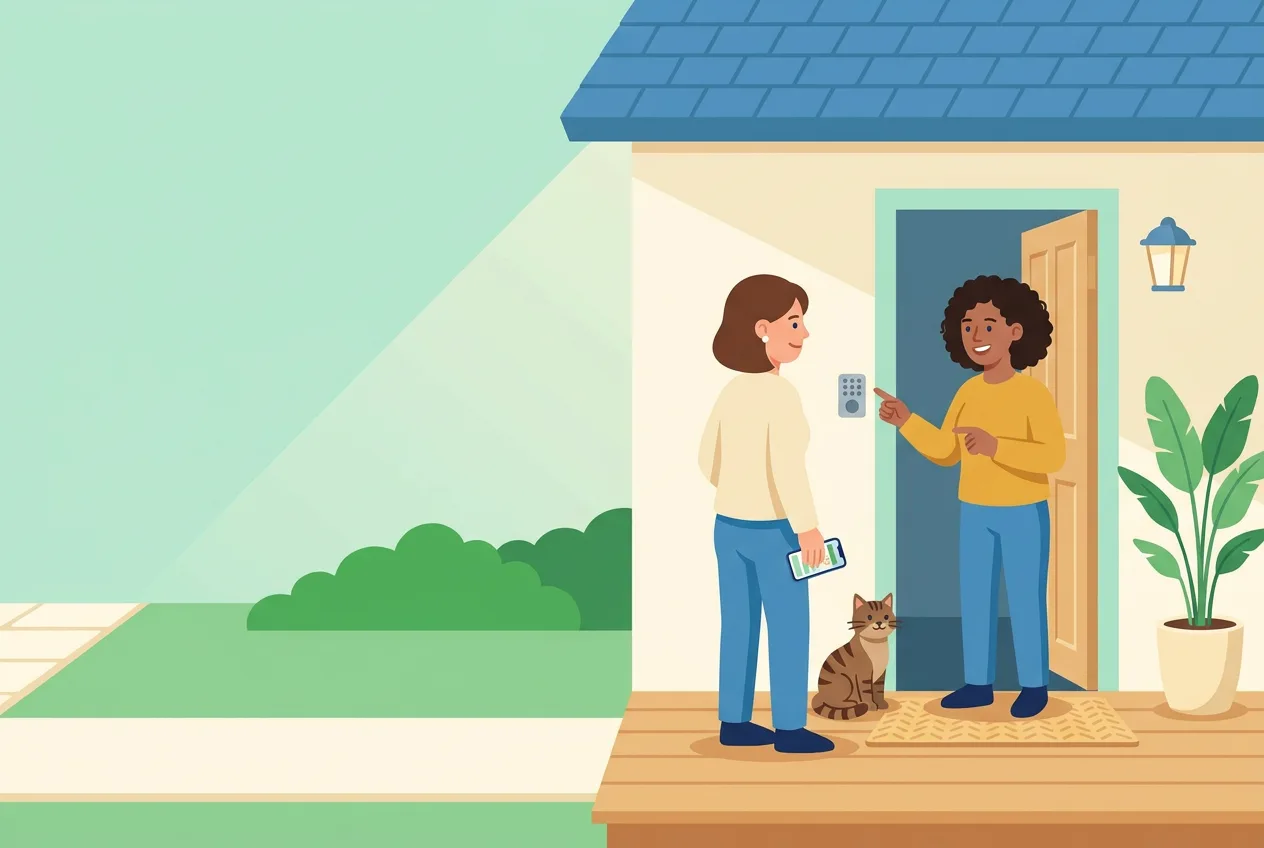
The owner on a customer's front porch, phone in hand, while the customer points out the keypad by her open door and her tabby cat sits between them
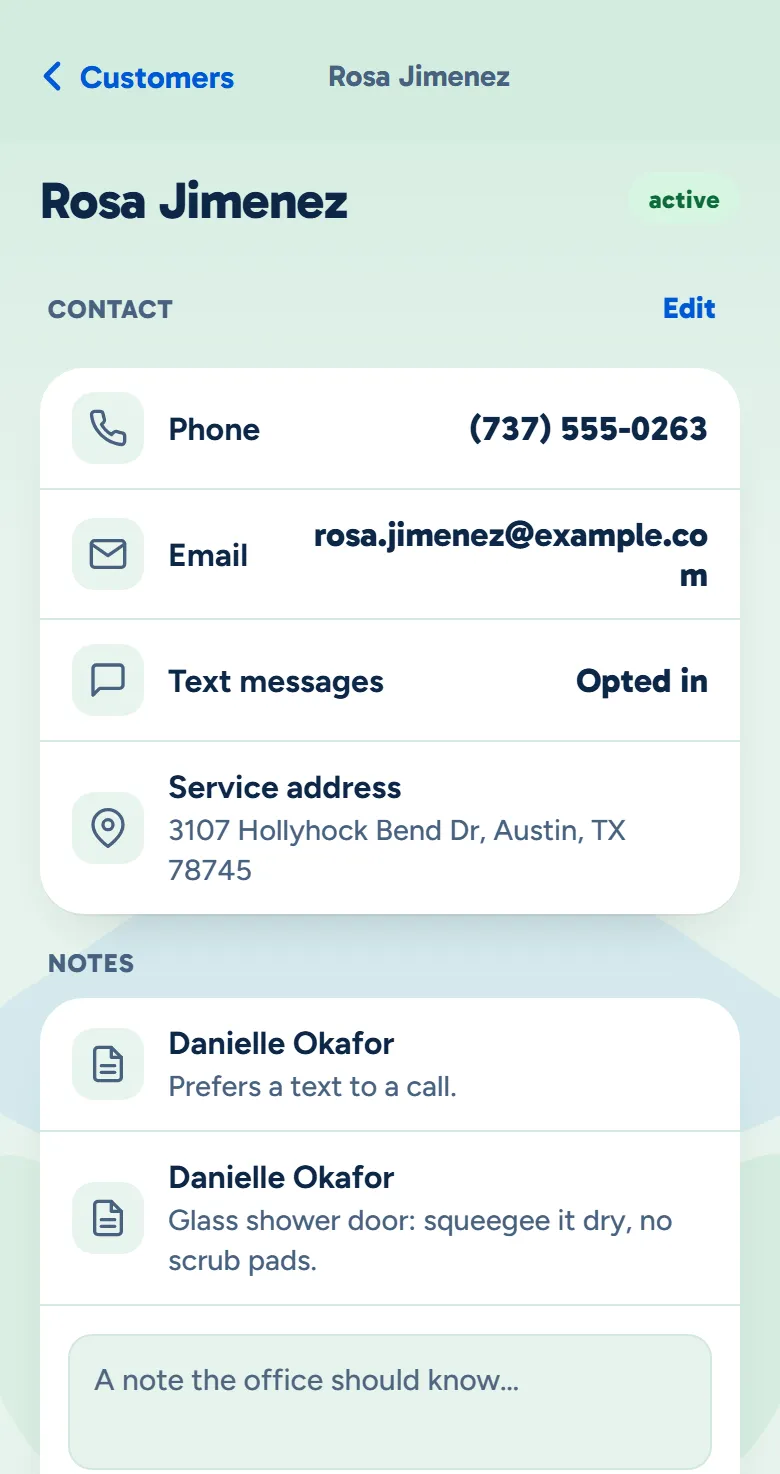
Rosa Jimenez's record in the owner app: her phone, email and home address, and the notes on her record
Example data

Each person sees the part they need.

Here is one customer's record and the people who use it. Tap the dots on the screens to see what each part does. The screens are the real product with example data.

The owner at her desk, working on her laptop
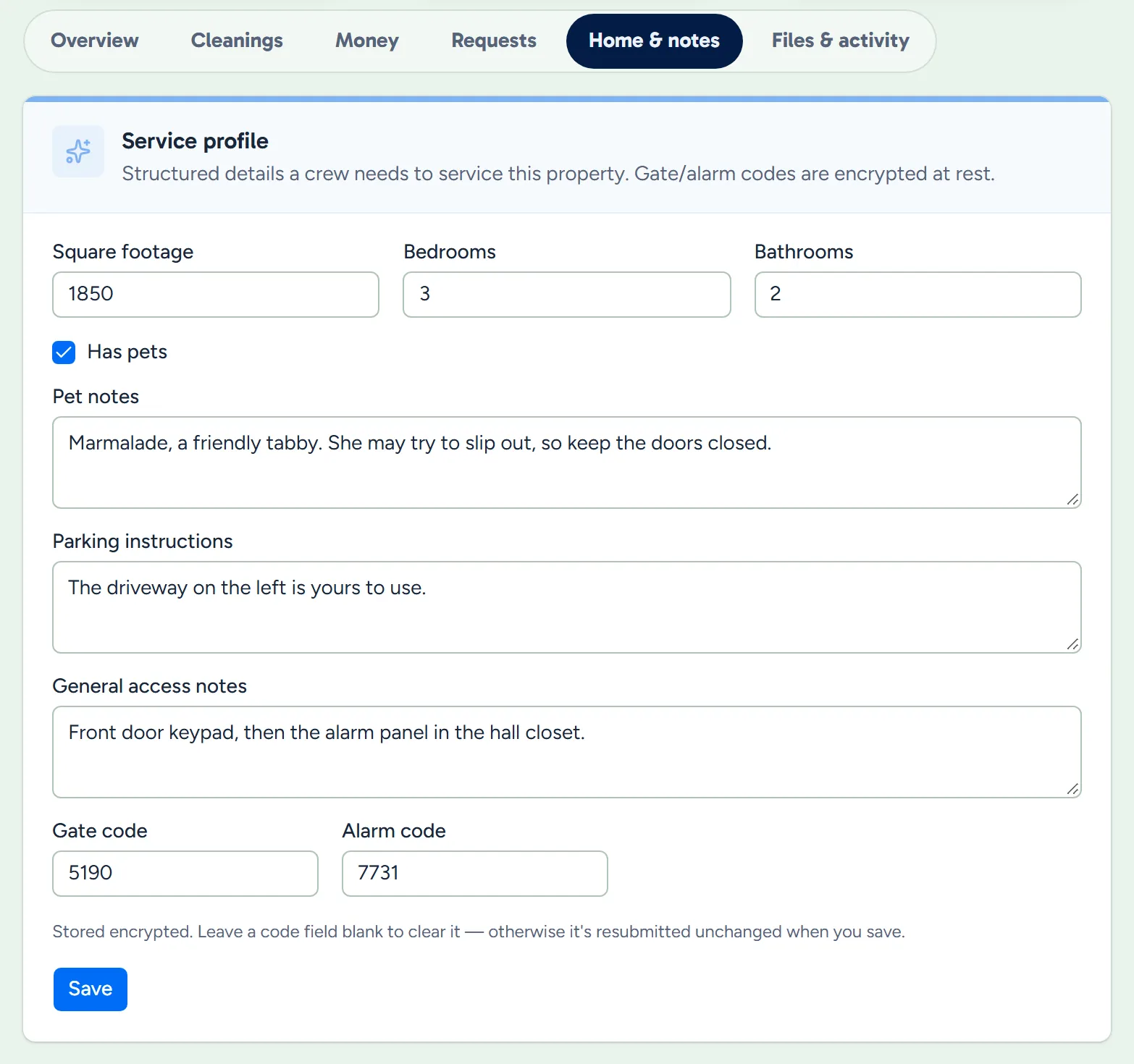
Rosa's home details on her record: square feet, bedrooms and bathrooms, pets, parking, how to get in, and the gate and alarm codes
Example data

Write the home down once

Size, pets, parking and how to get in go on their record once, for every cleaning after.

  • The whole home. Square feet and rooms, pets, parking and how to get in, each in its own box.
  • Codes stored encrypted. Gate and alarm codes, which everyone on your office team can read here.
  • Who they want. Mark a preferred cleaner, who counts in their favour when WellKept suggests who goes, and one never to send, who is never suggested.
  • Filled in from their form. A new lead who sends your intake form arrives with their home's details already in.
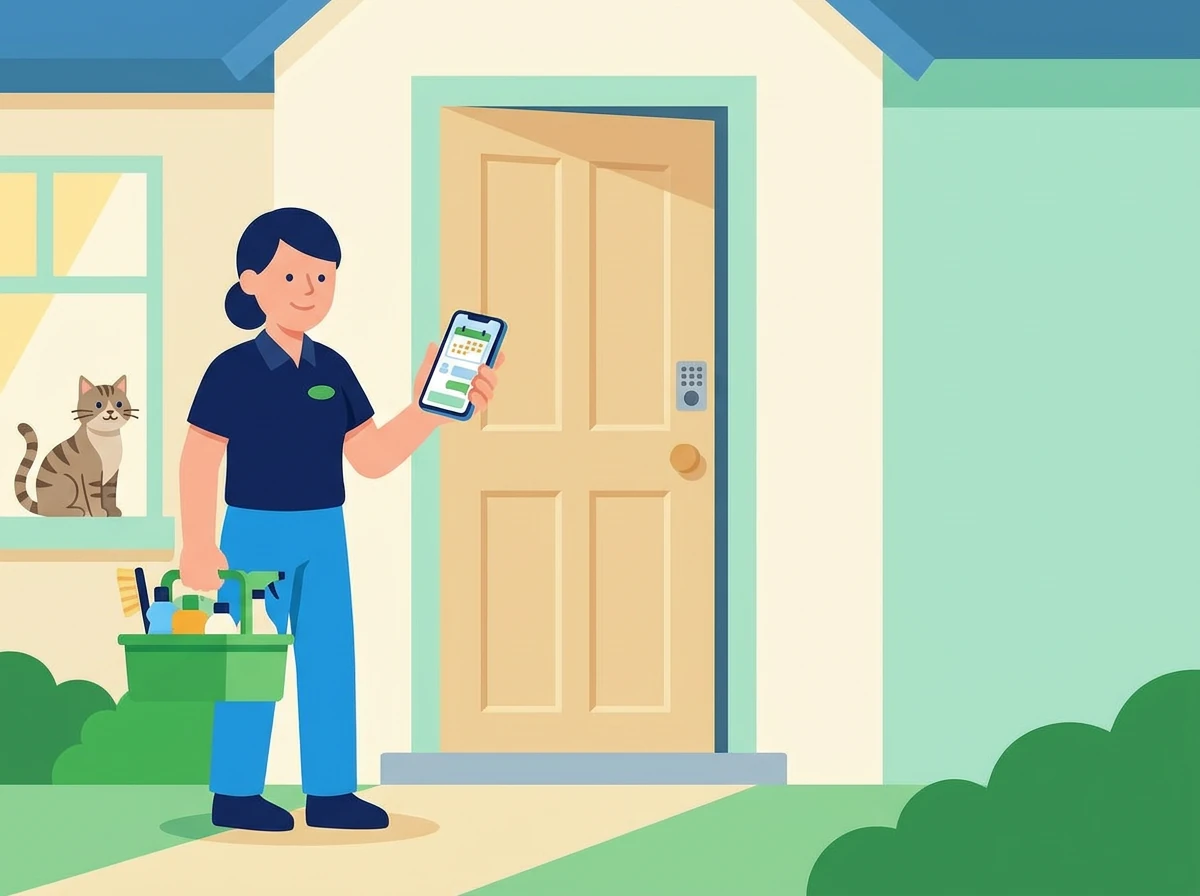
A cleaner at the front door with her phone and supplies while the customer's cat watches from the window
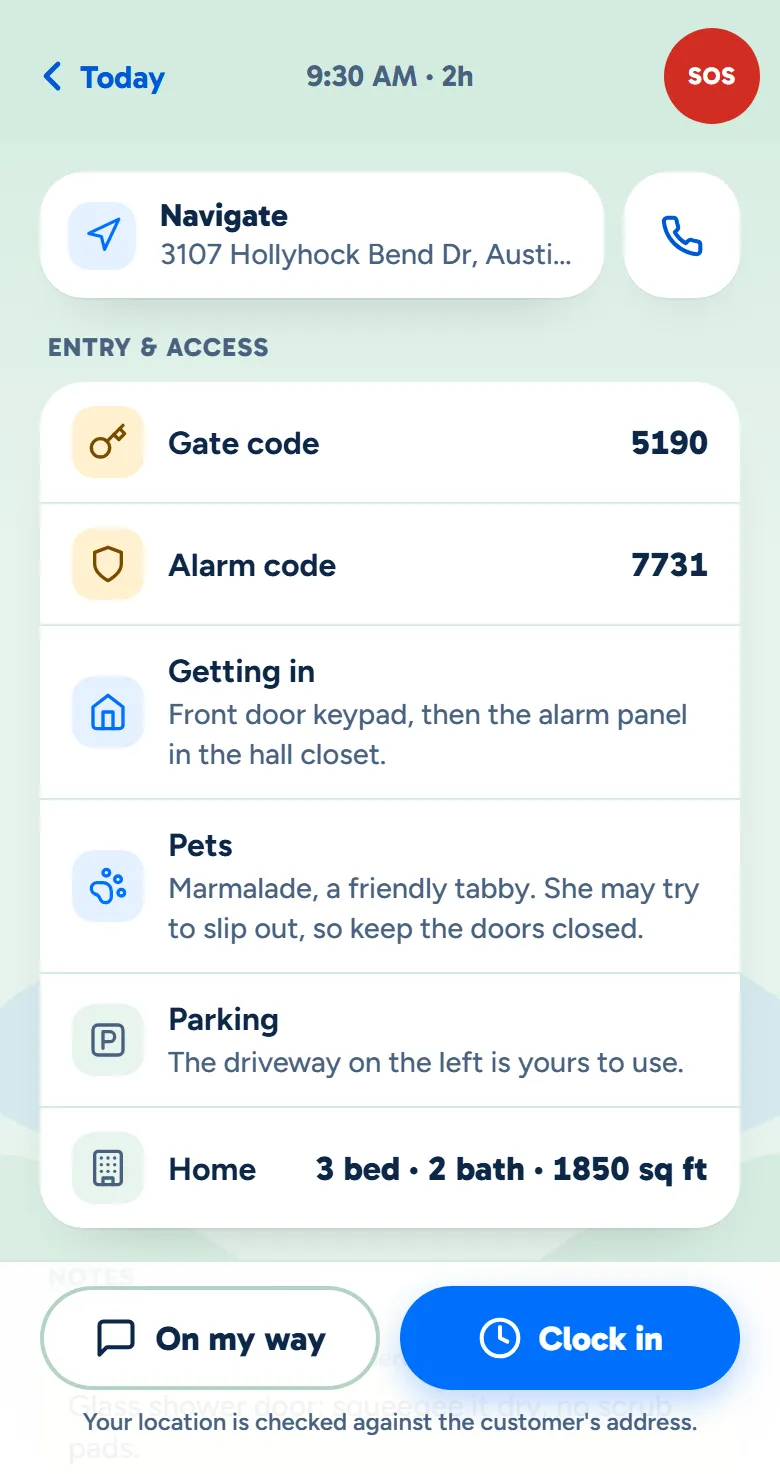
Rosa's visit in the crew app: the gate and alarm codes, how to get in, her cat and where to park
Example data

Your cleaner gets the way in

When they open the visit in the crew app, the codes, the pets and your notes are right there.

  • Codes only on their visits. A cleaner sees a home's codes only on the visits they're on.
  • Notes for the right people. Each note can be for the office only, the whole crew or your team leads.
  • One tap to get there. Navigate and Call sit at the top of the visit.
The owner at her dining table on the phone, smiling, with a map and a customer's details open on her laptop
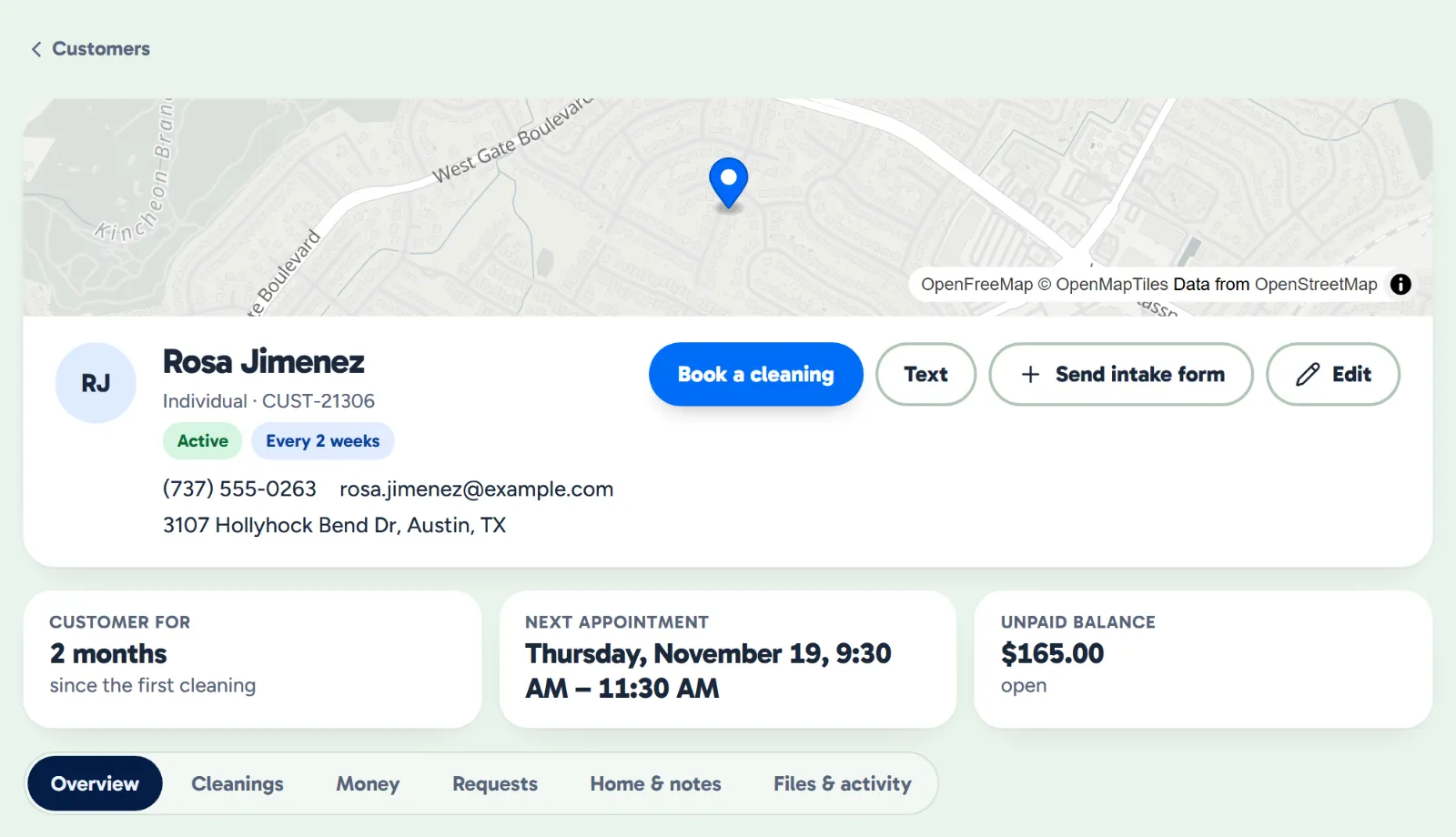
The top of Rosa's record: her home on a map, how to reach her, how often she has a cleaning, how long she's been a customer, her next appointment, her unpaid balance and the record's tabs
Example data

When she calls, it's all there

Open her record and her next cleaning, what she owes and how to reach her are at the top.

  • Her home on a map. Found from her address, at the top of her record.
  • What she owes, up top. Her unpaid balance across every open invoice.
  • Her next cleaning. The day and time, and how often she has one.
  • Everything else, one tab away. Cleanings, money, home and notes, files and activity.

Your whole list, easy to search.

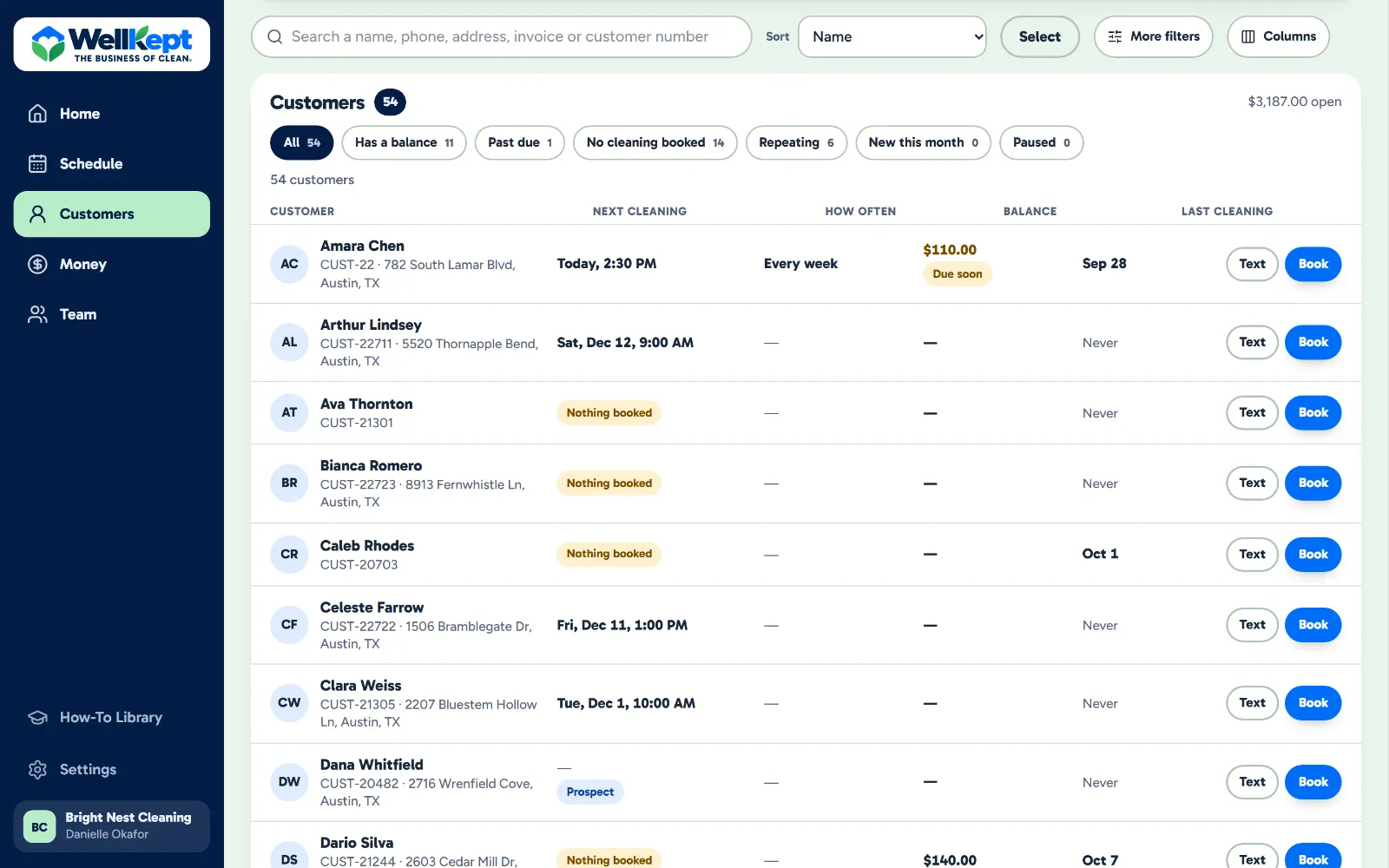
Find anyone, and narrow it to the customers you need right now.

  • A quick look, without leaving the list. Click a customer to see their home, next cleaning and what they owe beside it.
  • Narrow it down. Filter by type of customer, status, payment terms or who on your team looks after them.
  • Take it with you. Download everyone as a spreadsheet from Settings, whenever you like.
The customer list: a search box, one-tap filters for who has a balance or is past due, and what each customer owes
Example data

The same person twice?

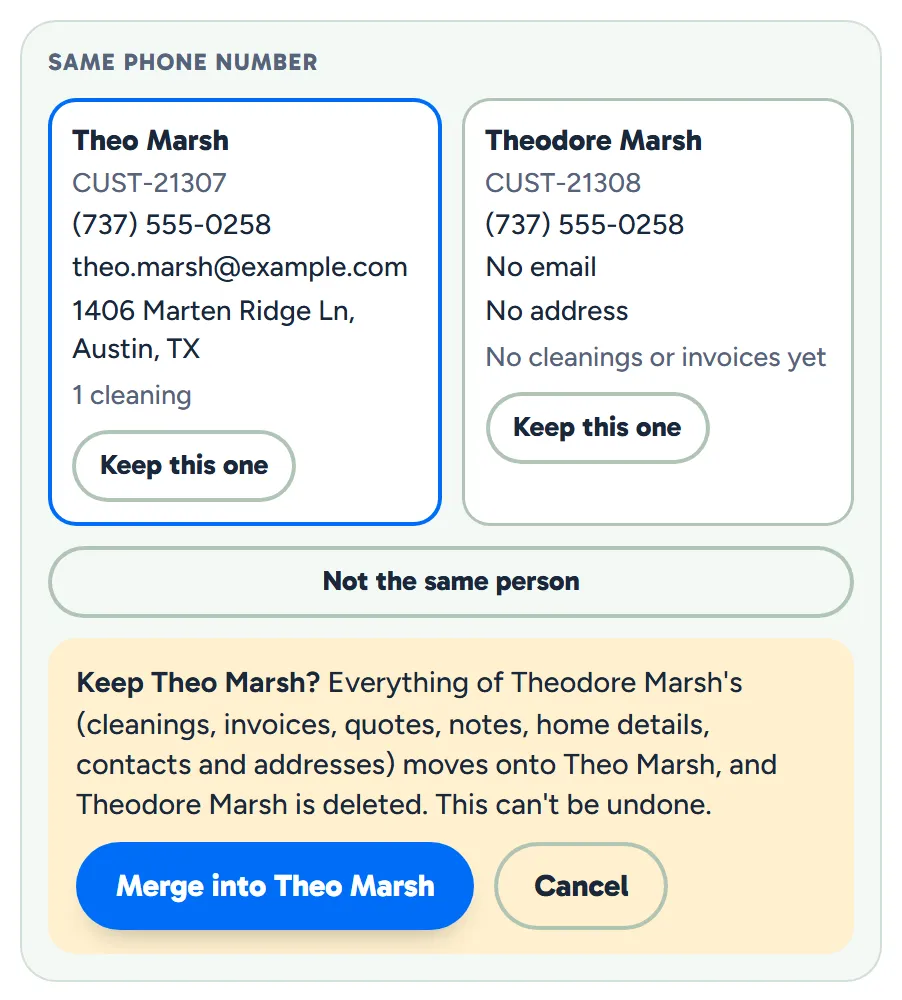
Duplicates, at the top of your customer list, has a scan that finds customers with the same email or phone number. Nothing is merged until you choose the one to keep.

  • Keep this one. Their cleanings, invoices, quotes and notes move onto the record you keep.
  • Nothing left behind. Their addresses and contacts move across with the rest.
  • Caught on import too. A spreadsheet row with the same email or phone as a customer is flagged first.
Theo Marsh and Theodore Marsh listed as possible duplicates because they share a phone number, with Theo Marsh picked to keep
Example data

What owners ask about their customer list.

Can I bring my customers over?

Yes. Save your list from what you use now as a CSV file, which any spreadsheet can do, and import it in Settings, with each customer's service address and a repeating cleaning if they have one. You check every row before anything is saved, with likely duplicates flagged, and you can undo the import as long as nothing has happened to those customers yet, like a quote, an invoice or a finished cleaning.

Who can see the gate and alarm codes?

Everyone on your office team, on the customer's record. The codes are stored encrypted, and in the crew app a cleaner sees them only on the visits they're on.

Can I take my customers with me?

Yes. From Settings, download your customers with their addresses, your repeating cleanings, the visits coming up and your crew as CSV files, whenever you like. Every export is recorded. Home details, notes and invoices aren't in these files yet.

See it with your customers.

Tell us how you keep track of your customers today and we'll show you how it fits.

The owner on her porch swing with a coffee at the end of the day while her two cleaners wave from beside the van